

In the past I have configured a LSI MegaRAID SAS 3108 – Cisco 12G SAS Raid controller with 1GB FBWC module. When I set that up, I just passed through control to VMware. The MegaRAID SAS 9271-I is different; here is how I set them up. I used VMware KB2111266 for reference on configuration settings.
When booting and the controller information comes up, press CTRL-H.
- Click “Start”.
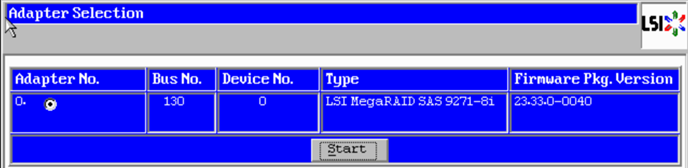
- I already have Virtual Drive 0 configured for my ESXi OS. Virtual Drive 1 has my 400GB disk I am using for VSAN caching. I have four unconfigured disks that I want to use for my capacity tier.
Click “Configuration Wizard”.

-
Click “Add Configuration” radio button and then click “Next“.

-
Click “Manual Configuration” radio button and then click “Next“.
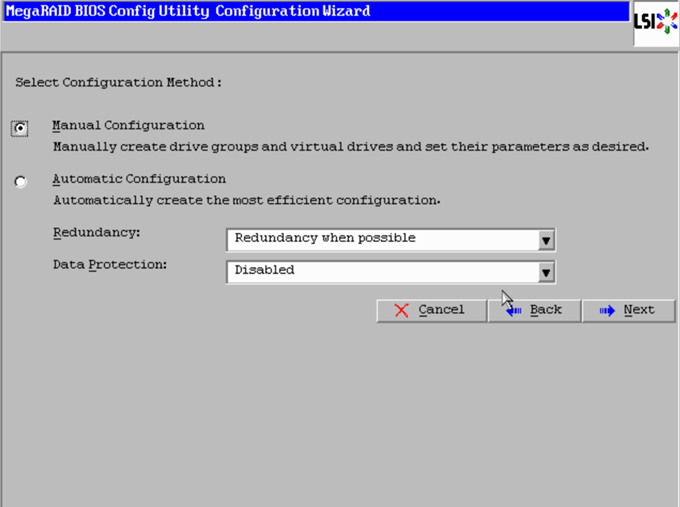
-
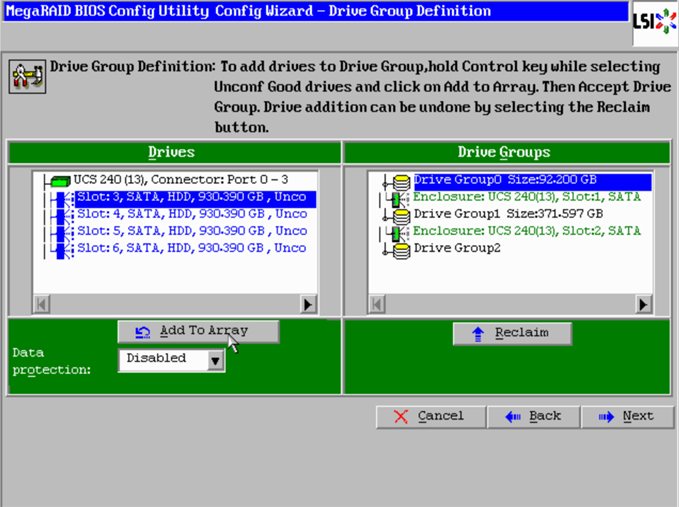
Now we see the four unconfigured drives on the left side. Click the first one, then click “Add to Array“.
-
Click on the “Accept DG” button. Repeat Steps 5 and 6 until all of your disks are in their own disk group then click “Next“.

-
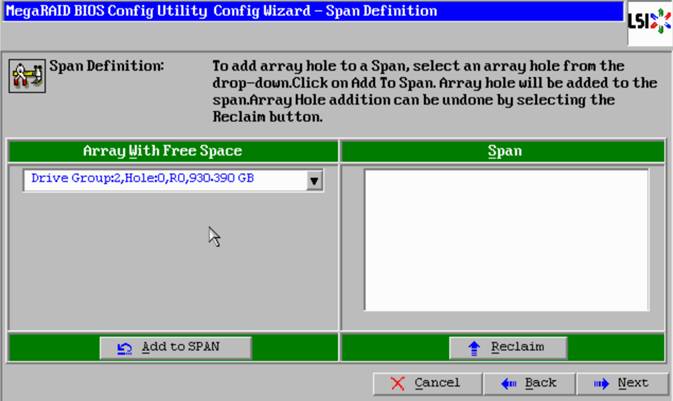
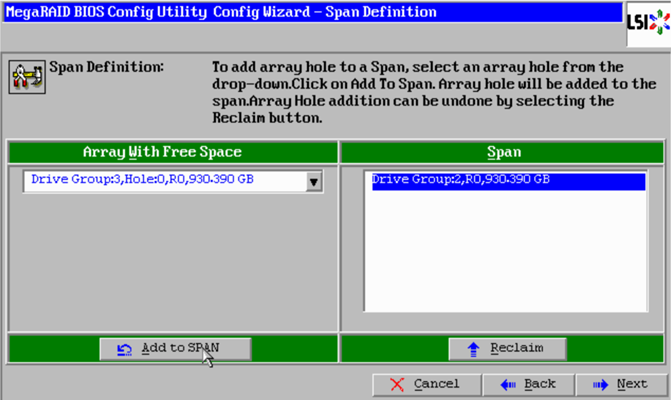
In the left pane click the “Add to SPAN” button.
-
The Disk Group appears in the right window under Span. Click “Next“.
-
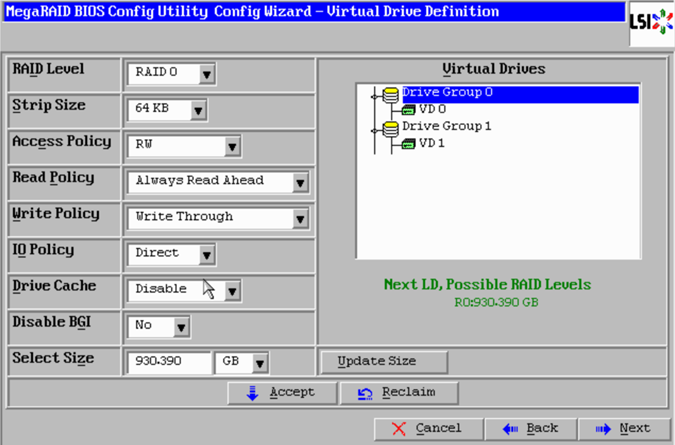
Depending on if the disk is an HDD or SSD, your settings will change. In my example I configured for HDD. When finished changing settings, click “Accept” and then “Next“.

-
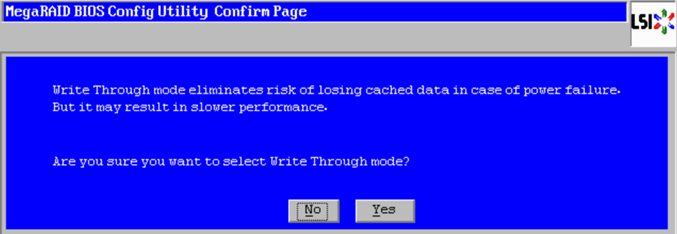
You will receive and alert about the possibility of slower performance with Write Through. Click “Yes“.
-
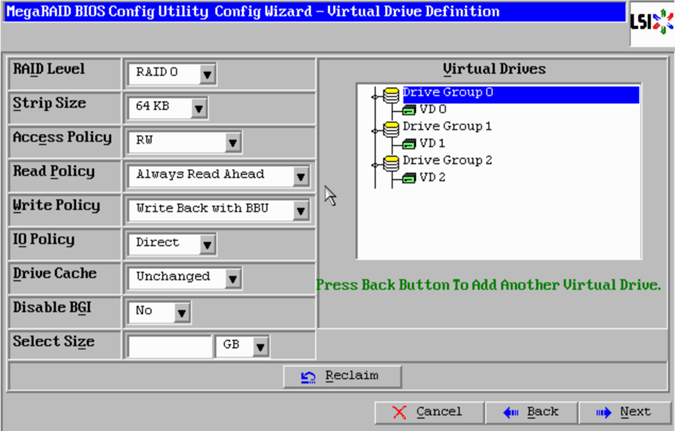
You now have to click “Back” and repeat steps 7-10 until all of your drives have been added.
-
One all of your drives have been added, click “Accept“.

-
Click “Yes” to save the configuration.

-
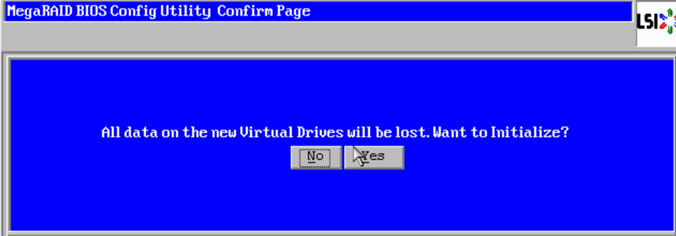
Acknowledge that you know that data will be lost on the new virtual drives. Click “Yes”.
-
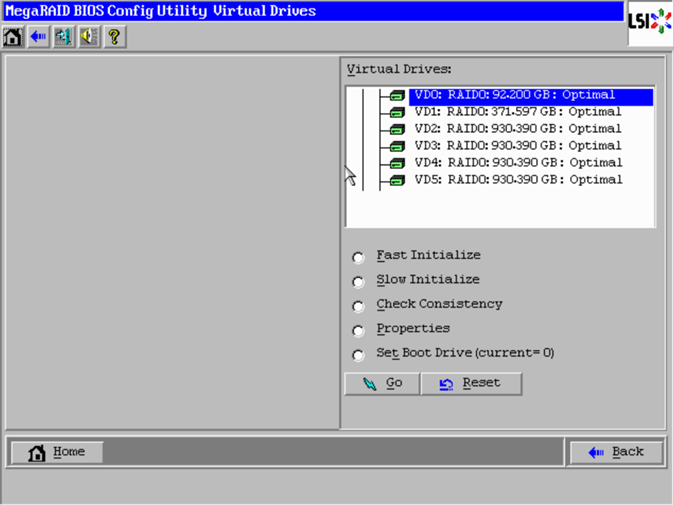
You will now see all of your drives under Virtual Drives. Click the “Home” button.
-
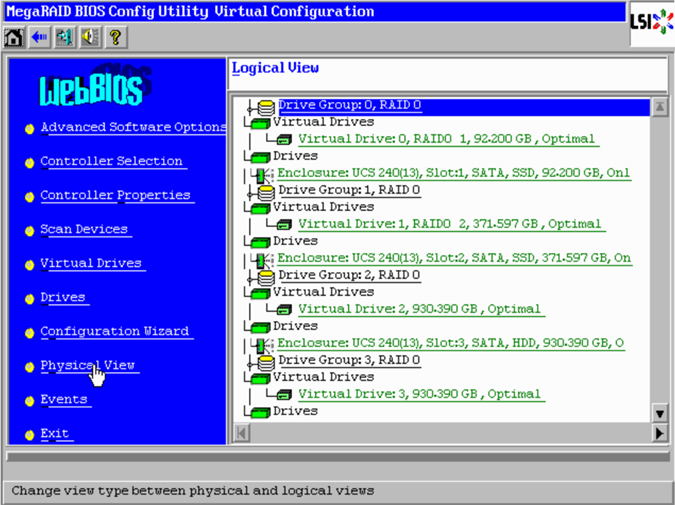
Click “Exit”.
-
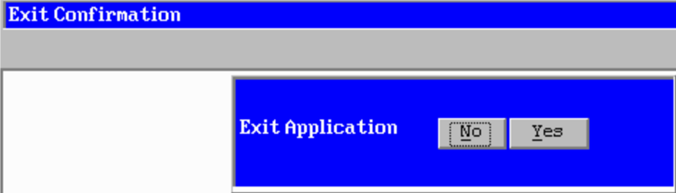
Click “Yes”.
-
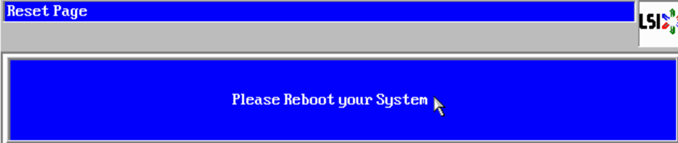
Power cycle your server.
- Success!! Vcenter shows my drives under storage devices. I can now add these disks to VSAN.




 Favoritevmguy
Leave a comment